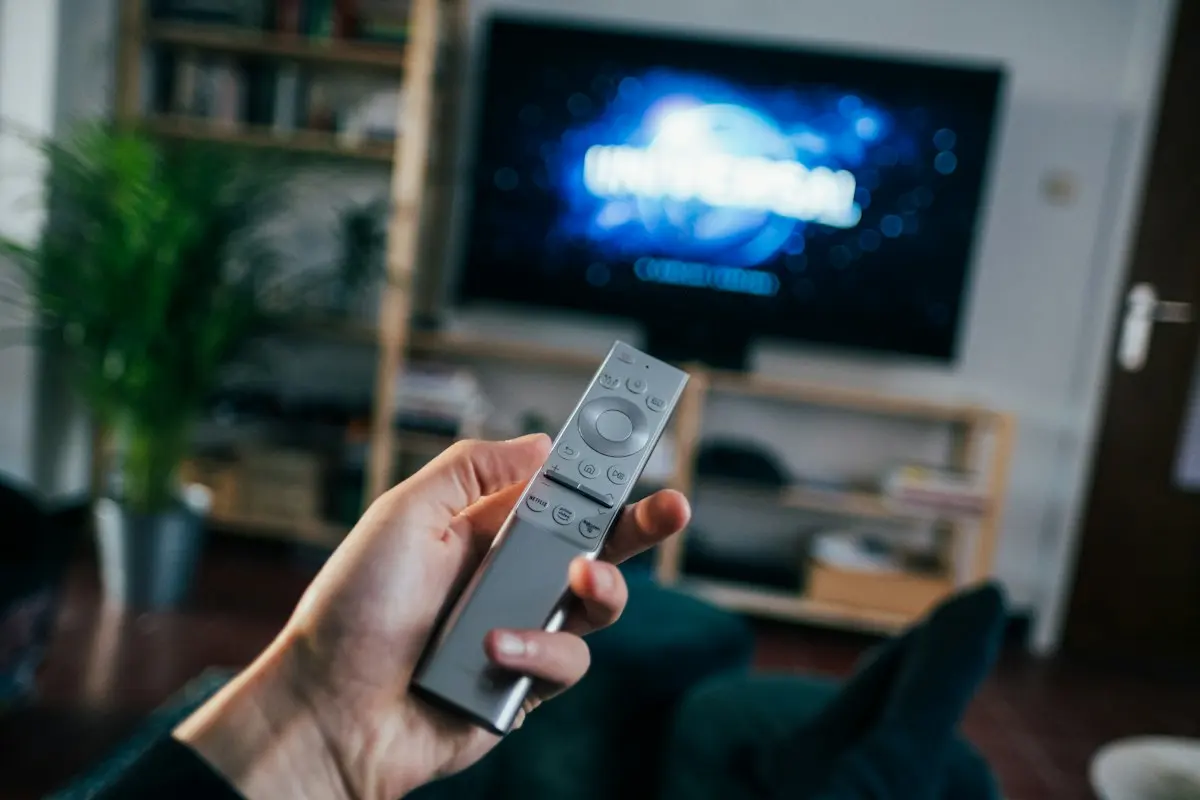
Samsung Smart TVs run their own operating system, Tizen, with apps from Samsung’s app store. That means you can often watch IPTV directly on the TV – no extra box required. This guide explains how, and when a streaming stick is the better choice.
Before you start
You will need:
- A Samsung Smart TV connected to the internet
- Your IPTV login details (Xtream Codes or M3U URL)
- Optional: a phone or computer for apps that let you upload your playlist online
Tip: update the TV first via Settings → Support → Software Update. Menu names can vary slightly between model years.
Step 1: Find an IPTV player in Smart Hub
- Press the Home button on the remote.
- Open Apps.
- Select the search icon and type “IPTV”.
- Look through the results for a player that supports Xtream Codes and/or M3U playlists.
App availability on Samsung TVs varies by model year and region. Read the description and recent reviews before installing, and check whether the app has a one-time activation fee – some Smart TV players do.
Step 2: Install and open the app
Select the app, choose Install, and open it when installation finishes. Many TV players now offer one of these login methods:
Login directly on the TV
The app asks for your Xtream Codes details (server, username, password) or an M3U URL. Enter them carefully using the remote.
Upload via website (device ID or MAC address)
Some apps show a device ID or MAC address on screen. You then:
- Open the developer’s official website on your phone or computer.
- Enter the device ID or MAC address shown on the TV.
- Add your M3U URL or Xtream details there.
- Restart the app on the TV – your channels load automatically.
This method avoids typing long links with the remote.
Step 3: Set up the TV guide (EPG)
If your channels load but the guide is empty:
- Look for EPG or TV guide in the app’s settings and select update/refresh.
- Add the EPG URL from your provider if the app has a field for it.
- Check the time zone or EPG offset setting if programmes appear at the wrong times.
More fixes in IPTV EPG not working.
Step 4: Improve picture and playback
- Connection: Samsung TVs have an Ethernet port – use it if you can. Otherwise connect to 5 GHz Wi-Fi.
- Picture mode: Movie or Filmmaker Mode shows more natural colours than “Dynamic”.
- Motion settings: if sports look unnatural, adjust Picture Clarity (Auto Motion Plus) settings.
- Quality: choose HD or Full HD channels if 4K buffers on your connection. See internet speed for IPTV.
When a streaming stick is the better option
Built-in TV apps are convenient, but a streaming device is often worth it if:
- your TV is older and the app store offers few or no IPTV players,
- you want a specific player such as TiviMate (Android-based devices only),
- the TV’s built-in apps feel slow,
- you want the same app on several TVs.
Plug the stick into a free HDMI port and follow our guides for Firestick, Android TV / Google TV or Apple TV.
Common problems on Samsung TVs
- App not found in search → it may not be available for your model or country; consider a streaming stick.
- Playlist does not load → check the URL or login details, then restart the TV completely by holding the power button until it restarts.
- Stutter on 4K → test speed on the TV and switch to Ethernet; see IPTV buffering fixes.
- App closes unexpectedly → update the TV software and reinstall the app.
Samsung remote and Smart Hub tips
A few small settings make daily IPTV use on a Samsung TV more comfortable:
- Move the app to the home row. In the home screen, highlight the app, press and hold the select button (or press down) and choose Move to place it at the start of the row.
- Use your phone as a keyboard. The SmartThings app on your phone can act as a remote with a keyboard on many models, which makes entering logins or URLs much faster.
- Number input. If your Smart Remote has no number keys, press the 123 button to open an on-screen number pad – useful in players that support channel numbers.
- Instant On. Many Samsung TVs keep apps in memory to start faster. If an app misbehaves, unplug the TV for a minute or hold the power button until it restarts to clear the memory.
Keeping picture and sound in sync
If lips and voices drift apart on some channels, check Settings → Sound → Expert Settings → Audio Delay (names vary by year) and the player’s own audio delay option. Turning off digital audio passthrough to a soundbar that does not support the stream’s audio format also prevents channels from playing silently.
Summary
Search Apps in Smart Hub for a compatible IPTV player, log in on the TV or upload your playlist via the developer’s website, refresh the guide and optimise your connection. If your model’s app selection is limited, a streaming stick is a quick upgrade. Choose your plan and number of screens in our plan overview, or ask us on WhatsApp which option fits your TV.
Frequently asked questions
Which IPTV apps work on Samsung TVs?
Availability depends on your TV model, year and country. Search the Samsung app store (Apps in Smart Hub) for IPTV player apps; several popular players publish Tizen versions.
My Samsung TV cannot find an IPTV app. What can I do?
Older models in particular have a limited app selection. A streaming device such as a Fire TV Stick, a Google TV device or an Apple TV gives you access to more players and is often the simplest solution.
Why does the app ask me to upload a playlist on a website?
Some Smart TV players display a device ID or MAC address. You enter your playlist on the developer's website, linked to that ID, because typing long links with a TV remote is impractical.
How do I get the best picture on a Samsung TV?
Use Ethernet or strong 5 GHz Wi-Fi, choose the highest quality your connection handles reliably, and use the Movie or Filmmaker picture mode for more natural colours.