LG Smart TVs use the webOS platform, with apps from the LG Content Store (simply called “Apps” on newer models). With the right player you can watch IPTV directly on the TV. Here is how to set it up and get a smooth picture.
What you need
- An LG Smart TV with webOS, connected to the internet
- Your IPTV details: Xtream Codes login or M3U URL
- Optional: a smartphone for apps that support online playlist upload
Before you begin, update the TV software via Settings → All Settings → General → About This TV → Check for updates (menu names vary by model year).
Step 1: Open the app store
- Press the Home button.
- Open LG Content Store or Apps.
- Use the search function and enter “IPTV”.
You will see a selection of player apps. The exact list depends on your TV model, webOS version and country.
Step 2: Pick a suitable player
Look for an app that:
- supports Xtream Codes API and/or M3U playlists,
- includes an EPG (programme guide),
- has recent updates and reasonable reviews,
- clearly states any one-time activation fee.
Install it with Install, then open it.
Step 3: Add your IPTV service
Depending on the app, you will log in in one of two ways.
Directly on the TV
Enter the playlist name and either your Xtream details (server URL, username, password) or the M3U URL. Type slowly – one wrong character prevents the login. If you are unsure which method to use, read Xtream Codes vs M3U.
Via the developer’s website
Some LG players show a device ID or MAC address. Visit the developer’s official website on your phone, enter that ID and paste your playlist. When you reopen the app on the TV, the channels appear.
Step 4: Configure the programme guide
Open the app’s settings and look for EPG or TV guide:
- Trigger an update if the guide is empty.
- Add an EPG URL if your provider supplied one.
- Adjust the time zone or EPG offset if programmes are shifted.
See IPTV EPG not working for detailed fixes.
Step 5: Optimise LG picture settings
- Picture mode: Cinema or Filmmaker Mode for films; Standard for general TV. Avoid “Vivid” for long viewing.
- Energy saving: turn it off for a brighter, more consistent picture (Settings → General → OLED Care / Energy Saving, depending on model).
- TruMotion: reduce or disable if motion looks artificial (“soap opera effect”).
- Connection: use Ethernet or 5 GHz Wi-Fi for HD and 4K streams.
When to use a streaming device instead
LG’s app store is curated, so the player you want may not be available. A streaming stick or box is a good alternative if you want:
- a specific player such as TiviMate (Android-based devices),
- a faster interface on an older TV,
- the same app across several TVs.
Our setup guides for Firestick, Android TV and Apple TV take you through it.
Troubleshooting on LG TVs
- “Failed to load playlist” → check the URL or login for typos, confirm your account is active, restart the TV.
- Buffering → test speed on the TV, switch to Ethernet, try a lower quality. See IPTV buffering fixes.
- App missing after an update → reinstall it from the store; your playlist may need to be re-entered.
- Audio out of sync → check the TV’s sound settings (AV sync adjustment) and the player’s audio options.
Getting the most from the Magic Remote
LG’s Magic Remote makes IPTV apps easier to use once you know a few tricks:
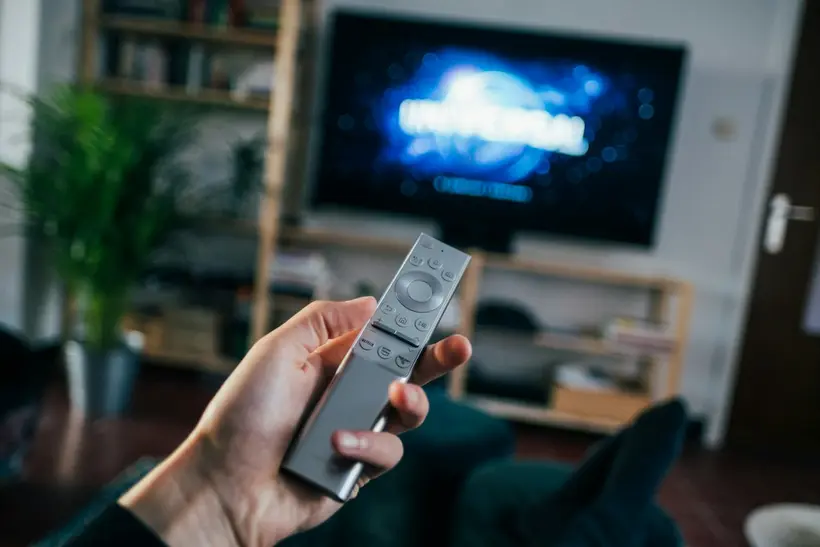
- Pointer mode – shake or move the remote to show the on-screen pointer. It is much faster than arrow keys for scrolling long channel lists or clicking into text fields.
- Voice search – on supported models, hold the microphone button to search for apps in the store without typing.
- Number keys – many players support direct channel numbers. If your remote has no number pad, the on-screen number pad (via the “123” button) does the same.
- Pin the app – move your IPTV player to the front of the home screen launcher bar so it is one click away.
Keeping the TV and app running smoothly
LG TVs can keep apps in memory for a long time, especially with Quick Start+ enabled. If the player becomes sluggish or the playlist stops updating:
- Close the app from the recent apps view.
- Turn the TV off at the wall (or disable Quick Start+ temporarily) to force a full restart.
- Reopen the app and refresh the playlist and EPG.
Also check for TV software updates every few months – they often improve the video decoder and Wi-Fi stability, which benefits every streaming app.
Summary
Find a compatible player in the LG Content Store, log in directly or via the developer’s website, refresh the programme guide and tune your picture and network settings. If the app selection does not suit you, a streaming stick solves it quickly. You can compare our plans for 1, 3, 6 or 12 months – and our team on WhatsApp is happy to help with your LG setup.
Frequently asked questions
Where do I find IPTV apps on an LG TV?
Open the LG Content Store (called Apps on newer models) from the home screen and search for IPTV. Available apps depend on your model and region.
Can I install apps from outside the LG store?
LG TVs are designed to install apps from the LG Content Store. If the player you want is not available there, a streaming device connected via HDMI is the practical alternative.
Why is the picture darker in some apps?
Check the picture mode and energy-saving settings. Energy saving can dim the screen; switching to Cinema or Filmmaker Mode and disabling energy saving often helps.
My LG TV disconnects from Wi-Fi. What helps?
Use the Ethernet port if possible. Otherwise update the TV software, connect to 5 GHz Wi-Fi and disable any 'quick start' or power-saving features that interfere with the network.