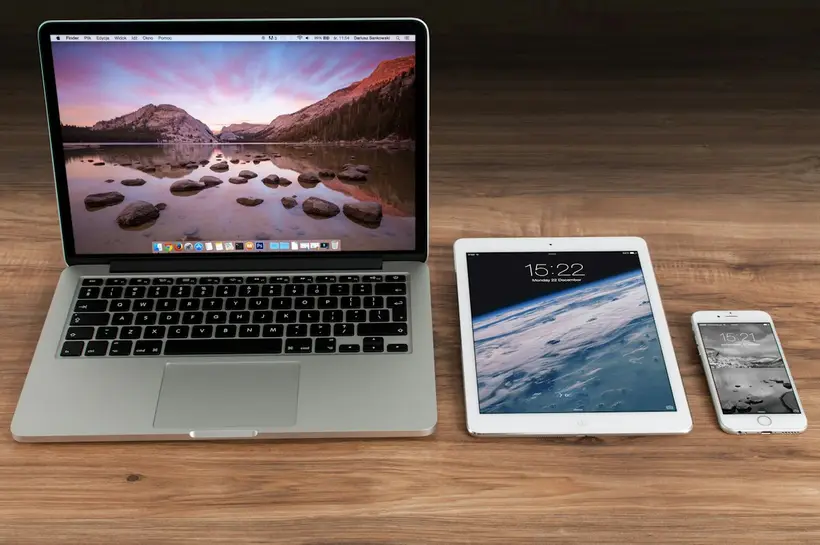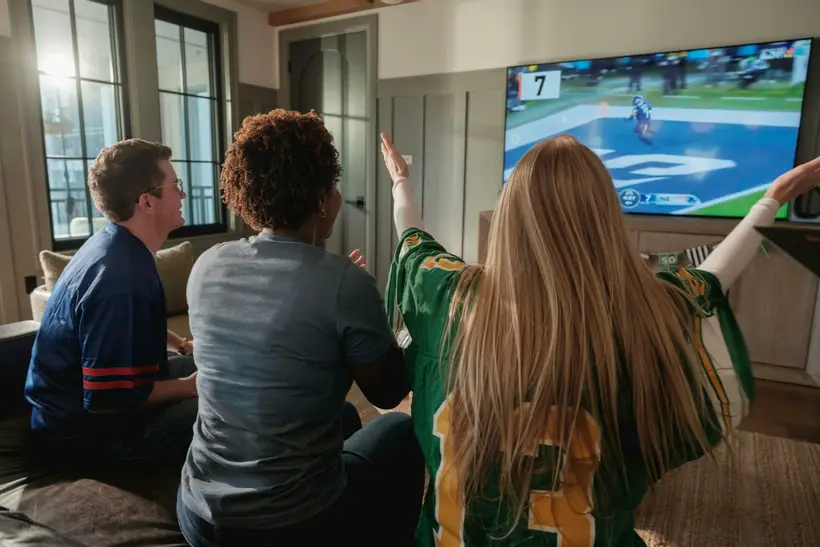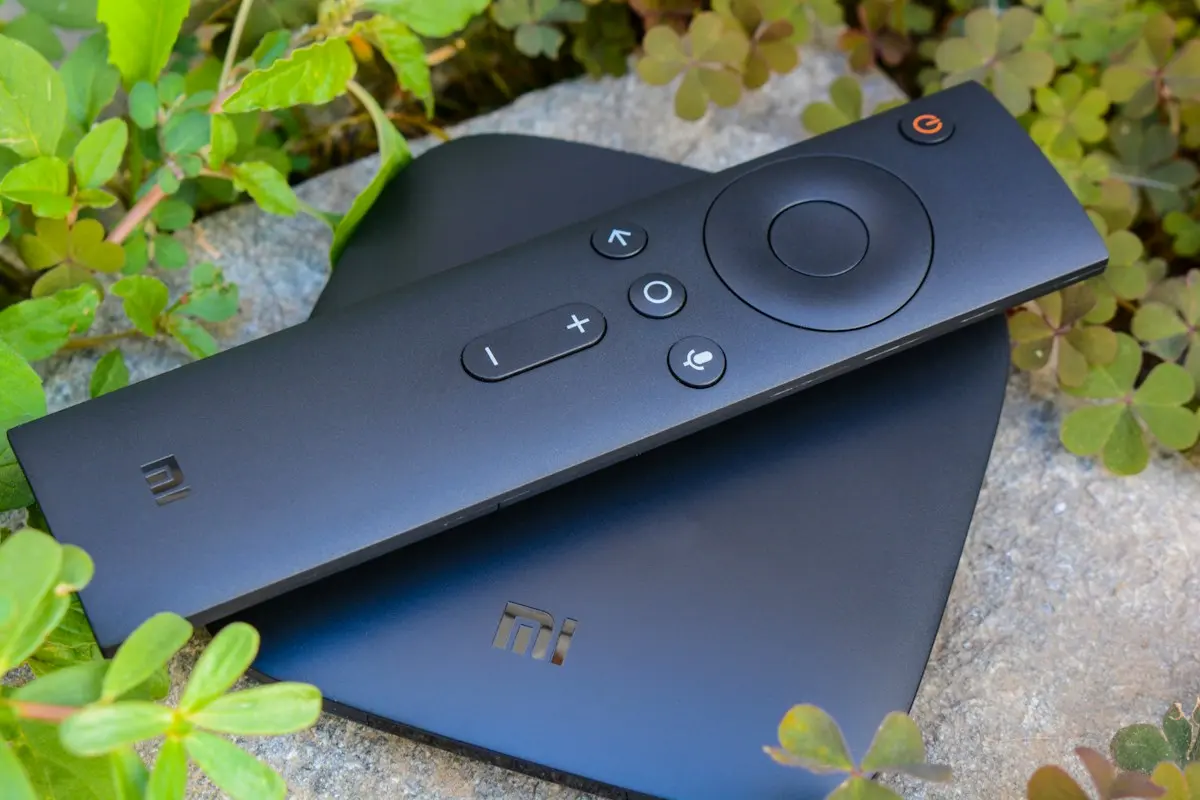
Android TV and Google TV are some of the most flexible platforms for IPTV. They run on many Smart TVs (for example from Sony, Philips, TCL and Hisense) and on streaming devices such as the Google TV Streamer, the Chromecast with Google TV (no longer sold, but still widely used), Nvidia Shield and numerous Android TV boxes. Best of all, the main IPTV players are available directly in the Google Play Store.
What you need
- An Android TV or Google TV device (TV, stick or box)
- A Google account signed in on the device
- Your IPTV login: Xtream Codes details or M3U URL
- A stable connection – Ethernet or 5 GHz Wi-Fi recommended
Step 1: Update the system and Play Store
- Go to Settings → System → About → System update (wording varies by device).
- Open the Play Store, go to your profile and choose Manage apps & games to update existing apps.
Step 2: Choose and install a player
Open the Google Play Store, search for the player and select Install. Good options:
- TiviMate – a TV-guide-centred interface designed for remote control use. Some features need TiviMate Premium. See our TiviMate setup guide.
- IPTV Smarters Pro – friendly layout for live TV, movies and series. See our IPTV Smarters Pro guide.
- OTT Navigator – highly customisable, good for power users.
- Kodi with the PVR IPTV Simple Client add-on – flexible but more technical.
Installing from the Play Store keeps updates automatic and avoids files from unknown sources.
Step 3: Add your IPTV account
The exact screens differ per app, but the process is the same:
- Open the player and choose Add playlist or Add user.
- Select Xtream Codes (recommended) or M3U playlist.
- Enter the server URL, username and password – or paste the M3U URL.
- Name the playlist and confirm.
Typing tip: the Google TV app on your phone includes a remote with a keyboard. Text you type on the phone goes straight into the TV’s input field.
Step 4: Load the programme guide
With Xtream Codes, the EPG usually loads automatically. Otherwise, add the EPG URL from your provider in the app’s EPG settings and refresh. If programmes are shown at the wrong time, adjust the time shift or check the device’s time zone (Settings → System → Date & time). More help: IPTV EPG not working.
Step 5: Optimise playback
Decoder
Most players let you choose between a hardware and software decoder. Hardware decoding is best for HD and 4K on capable devices. If a channel shows a black screen or stutters, try the other option.
Display and HDMI
For external boxes, set the output resolution to 4K or Auto in the device settings and enable your TV’s enhanced HDMI mode on the port you use. See 4K IPTV requirements.
Match frame rate
Some devices offer match content frame rate (or “auto frame rate”). Turning it on can make sports and films look smoother, at the cost of a brief blank screen when switching channels.
Network
Use Ethernet where possible – many Android TV boxes have a port. Otherwise connect to 5 GHz Wi-Fi.
Step 6: Make it yours
- Add channels to Favourites and set the favourites group as the start screen.
- Hide categories you never watch.
- Set the player to open automatically on start-up, if your device supports it.
- Enable catch-up where channels support it.
Troubleshooting on Android TV
- App says “no internet” → restart the router and device; check that the date and time are set automatically.
- Buffering → follow our IPTV buffering fixes.
- App is slow → clear the cache under Settings → Apps → [player] → Clear cache, and free up storage.
- Login fails → re-enter details carefully; confirm the account is active and not at its connection limit.
Choosing Android TV hardware for IPTV
If you are buying a device specifically for IPTV, a few specifications matter more than the price tag:
- Official Google TV / Android TV certification. Certified devices include the Google Play Store, receive security updates and run apps reliably. Some cheap “Android boxes” run phone versions of Android without certification, which can cause app compatibility and remote-control problems.
- Memory and storage. At least 2 GB of RAM and 8 GB or more of storage leave room for the player, the TV guide cache and system updates.
- HEVC hardware decoding and 4K output if you want Ultra HD – see 4K IPTV requirements.
- An Ethernet port (or support for a USB Ethernet adapter) for the most stable connection.
- A remote with a number pad or voice search to navigate long channel lists quickly.
A Smart TV with Google TV built in already meets most of these. For older TVs, a certified streaming stick or box is usually the simplest upgrade.
Summary
Android TV and Google TV make IPTV straightforward: install a player from the Play Store, add your Xtream or M3U login, load the guide, then fine-tune decoder and display settings. Want to compare apps first? Read our IPTV player comparison. Ready to start? Choose a plan for the number of screens in your home.
Frequently asked questions
What is the difference between Android TV and Google TV?
Google TV is a newer interface built on top of Android TV. Both use the Google Play Store and run the same IPTV player apps, so setup is essentially the same.
Which IPTV app is best on Android TV?
TiviMate is popular for live TV with a classic guide layout, IPTV Smarters Pro is easy for beginners, and OTT Navigator is very configurable. See our player comparison for details.
Do I need to sideload apps on Android TV?
Usually not. Most popular IPTV players are available in the Google Play Store on Android TV and Google TV devices, which is the safest way to install them.
Why does 4K not play on my Android TV box?
Check that the box outputs 4K, supports HEVC hardware decoding and is connected to a 4K-capable HDMI port with enhanced mode enabled. Also confirm your connection is fast and stable enough.