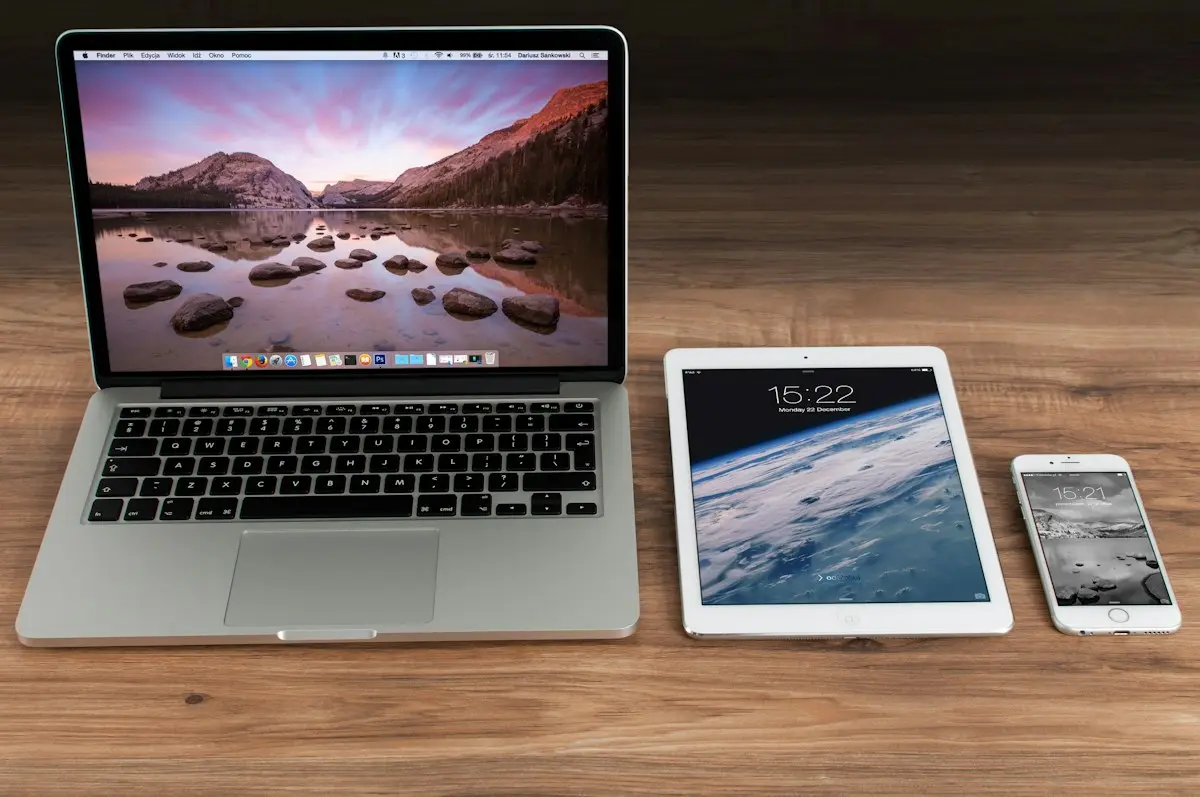
Apple devices are a great fit for IPTV: the Apple TV 4K is smooth and well-built, and an iPhone or iPad turns into a portable TV in seconds. All you need is a player app from the App Store and your login details.
What you need
- An Apple TV (Apple TV 4K for Ultra HD), iPhone or iPad
- Your IPTV login: Xtream Codes details or an M3U URL
- A stable internet connection – Ethernet for Apple TV is ideal
Step 1: Choose a player from the App Store
Open the App Store on your device and search for “IPTV player”. The tvOS and iOS stores offer several apps that support Xtream Codes and M3U. When choosing, check:
- support for your login type (Xtream and/or M3U),
- an EPG (TV guide) with a clear layout,
- iCloud sync for playlists and favourites across devices,
- recent updates and transparent pricing (many are free with optional upgrades).
Installing from the App Store means automatic updates and no files from unknown sources. For a broader overview, see best IPTV player apps.
Step 2: Set up on Apple TV
- Open the player on Apple TV.
- Choose Add playlist (or similar) and select Xtream Codes or M3U.
- Enter your server URL, username and password – or the M3U URL.
- Save and wait for the channels to load.
Typing tip: when a text field is active on Apple TV, your iPhone shows a keyboard notification. Tap it to type – or paste – directly from your phone. Some apps also let you add a playlist on iPhone and sync it to Apple TV via iCloud.
Step 3: Set up on iPhone and iPad
The process is the same as on Apple TV, but typing is easier. Copy the login details from your provider’s message and paste them into the app. Mark favourites on the phone if the app syncs them to the TV.
Step 4: Programme guide and settings
- EPG: with Xtream logins the guide usually loads automatically. Otherwise, add the EPG URL and refresh. See IPTV EPG not working if times are off.
- Match frame rate and range: on Apple TV, go to Settings → Video and Audio → Match Content and enable Match Dynamic Range and Match Frame Rate for a more natural picture.
- Format: set Settings → Video and Audio → Format to 4K if your TV supports it.
Streaming from iPhone to the TV with AirPlay
If you do not have an Apple TV, many players support AirPlay to AirPlay-compatible Smart TVs:
- Start a channel in the player on your iPhone or iPad.
- Tap the AirPlay icon in the player.
- Choose your TV.
AirPlay is handy, but a native app on Apple TV or a streaming stick usually gives a more stable picture and frees your phone.
Network tips for Apple TV
- Use the Ethernet port on Apple TV models that have one – the most reliable option for 4K.
- Otherwise use 5 GHz Wi-Fi and keep the Apple TV out of closed cabinets.
- Check speed against our guidelines in internet speed for IPTV.
Mobile viewing tips
- On mobile data, choose SD or HD to save data.
- Download nothing in the background while streaming over cellular.
- Each device that streams uses one of your plan’s connections – see IPTV on multiple devices.
Troubleshooting on Apple devices
- Login fails → check for automatic capitalisation; iOS keyboards sometimes capitalise the first letter of a username.
- Black screen on some channels → switch the player’s video engine or decoder if the app offers this option.
- Buffering → see IPTV buffering fixes.
- App missing on Apple TV → some iPhone apps have no tvOS version; check the App Store on the Apple TV itself.
Keeping things organised across Apple devices
If several people use the same IPTV account on Apple devices:
- Use a player with iCloud sync so playlists and favourites appear on every device signed in with the same Apple ID.
- Separate favourites per person where the app offers profiles, or create a dedicated favourites group for each household member.
- Name playlists by room (“Living room Apple TV”, “Kids’ iPad”) so you can see which device is using a connection.
Parental controls with Screen Time
Many IPTV players have their own PIN lock for categories. Apple’s Screen Time adds a second layer:
- On iPhone or iPad, open Settings → Screen Time for the child’s device or profile.
- Use App Limits to restrict viewing time in the player.
- Use Content & Privacy Restrictions to stop new apps from being installed without permission.
On Apple TV, go to Settings → General → Restrictions to set a passcode and limit app access. Combining Screen Time with the player’s own category lock gives you good control over what children can watch.
Summary
Install an IPTV player from the App Store, add your Xtream or M3U login (using your iPhone keyboard to save typing), set up the guide and enable Match Content on Apple TV. iPhone and iPad work the same way and can stream to the TV via AirPlay. Compare our plans to choose how many Apple devices you want to use at once.
Frequently asked questions
Which IPTV apps are available for Apple TV?
The App Store on tvOS offers several IPTV players that support Xtream Codes and M3U. Search for IPTV player and compare features, update history and reviews; some are free with in-app purchases.
Can I use the same app on iPhone, iPad and Apple TV?
Many players are universal apps that run on iPhone, iPad and Apple TV. Some sync playlists or favourites via iCloud, which saves typing on the TV.
Can I AirPlay IPTV from my iPhone to the TV?
Often yes, if the player supports AirPlay and your TV or Apple TV is AirPlay-compatible. A native app on Apple TV usually gives better quality and a more stable stream.
Does Apple TV support 4K IPTV?
Apple TV 4K models do, when connected to a 4K TV with a suitable HDMI cable, and when the stream and your connection support 4K.