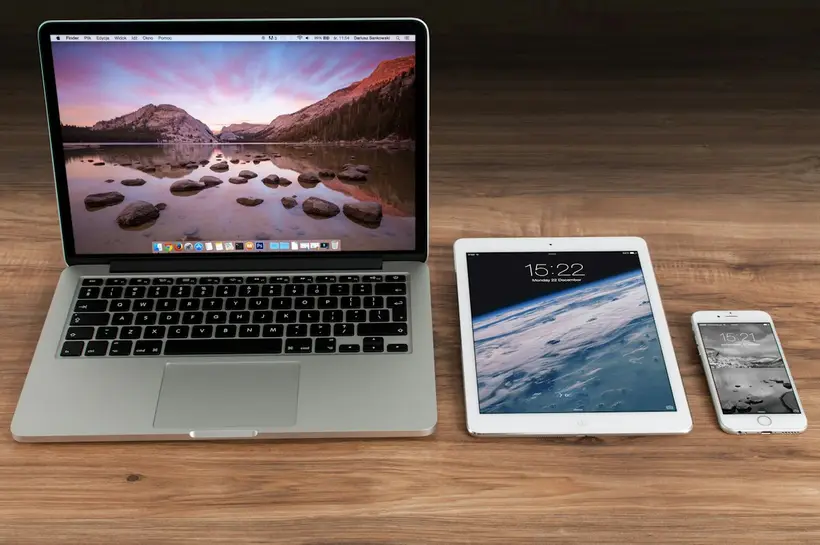
4K – also called Ultra HD or UHD – has four times as many pixels as Full HD. On a large TV the difference is obvious: sharper detail, cleaner text and more depth. But 4K IPTV only looks good when every link in the chain supports it. This guide walks through each requirement so you can check your setup in a few minutes.
The 4K checklist at a glance
- A 4K-capable TV or monitor
- A streaming device or Smart TV app that can play 4K
- Support for modern codecs, especially HEVC (H.265)
- The right HDMI port, cable and TV settings
- A fast, stable internet connection
- Content that is actually available in 4K
If one item is missing, you will either get an HD picture or a stream that buffers.
1. A 4K screen
This sounds obvious, but check the specification: the panel should have a native resolution of 3840 × 2160 pixels. Many TVs sold in the last several years are 4K, but smaller or older models may be Full HD (1920 × 1080).
On a smaller screen viewed from a sofa, the difference between FHD and 4K is less noticeable. 4K shines on larger TVs and when you sit relatively close.
2. A 4K-capable streaming device
The device that runs your IPTV player must be able to output 4K. Common options:
- Amazon Fire TV Stick 4K / 4K Max – popular and affordable; see our Firestick setup guide.
- Google TV / Android TV devices with 4K output – flexible app choice; see IPTV on Android TV.
- Apple TV 4K – smooth interface and strong app support; see IPTV on Apple TV.
- Built-in Smart TV apps on recent Samsung and LG models – convenient, though app choice is more limited.
Older streaming sticks labelled only “HD” or “Full HD” will not output 4K, even on a 4K TV.
3. HEVC and codec support
4K streams are usually compressed with HEVC (H.265), which delivers the same quality as older H.264 at a lower bitrate. Your device should decode HEVC in hardware – otherwise playback may stutter or fail.
Most current 4K streaming devices and 4K Smart TVs support HEVC. In player apps you will sometimes find a decoder setting:
- Hardware decoder (HW / HW+) – usually the best choice for 4K.
- Software decoder (SW) – useful as a fallback if a stream will not play, but more demanding on the device.
If a 4K channel shows a black screen or plays audio only, switching the decoder is one of the first things to try.
4. HDMI, cables and TV settings
External devices need a proper 4K connection:
- Use an HDMI port that supports 4K at 60 Hz with HDCP 2.2. On some TVs, only certain ports do – check the labels or the manual.
- Enable enhanced HDMI mode if your TV has it. Manufacturers call it different things, such as “Input Signal Plus” (Samsung), “HDMI Ultra HD Deep Colour” (LG) or “Enhanced format” (Sony).
- Use a Premium High Speed HDMI cable (18 Gbps or higher). Short, good-quality cables avoid flickering and dropouts.
- Check the device’s display settings – set resolution to 4K or “Auto” so it does not stay at 1080p.
5. Internet speed and stability
4K needs considerably more bandwidth than HD. As a practical guideline per active stream:
| Quality | Recommended connection per stream |
|---|---|
| SD | 5+ Mbps |
| HD (720p) | 10+ Mbps |
| Full HD (1080p) | 20+ Mbps |
| 4K / UHD | 50+ Mbps |
These figures include headroom, because the speed you get on a busy evening is often lower than your tariff. The exact bitrate of a stream depends on the provider and the content.
Stability matters as much as speed. A connection that averages 100 Mbps but drops intermittently will buffer more than a steady 50 Mbps line. For 4K we strongly recommend:
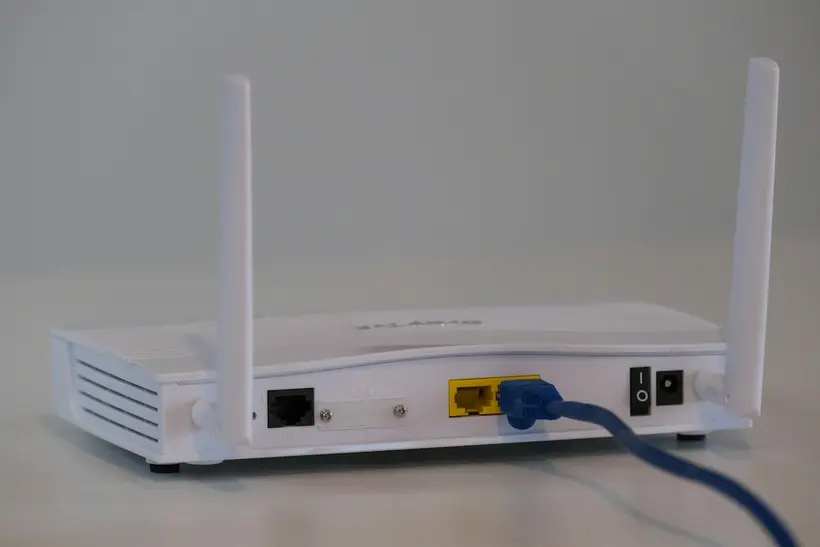
- an Ethernet cable where possible, or
- 5 GHz Wi-Fi close to the router, or a mesh system for larger homes.
Our internet speed for IPTV guide shows how to test properly on the device you watch on.
6. Content that is actually in 4K
Even with perfect hardware, you only see 4K when the content is produced and delivered in 4K. Most live TV is broadcast in HD or Full HD; 4K is more common for selected live events, nature and documentary content, and on-demand titles. Look for “4K” or “UHD” in the channel name or the stream information in your player.
Is 4K worth it?
4K is worth it when you have a large 4K TV, a capable streaming device and a stable fast connection. If your Wi-Fi is weak or several people stream at the same time, Full HD often delivers a better experience simply because it plays without interruptions.
Quick troubleshooting for 4K
- Picture looks soft → confirm the device outputs 4K and the TV’s HDMI enhanced mode is on.
- Buffering only on 4K channels → test speed on the device, switch to Ethernet, close other downloads. See IPTV buffering fixes.
- Black screen, sound only → switch between hardware and software decoder in the player.
- Flickering or “no signal” → try a different HDMI port or a certified cable.
Summary
Great 4K IPTV comes from a complete chain: a 4K screen, a capable device with HEVC support, correct HDMI settings, a fast and stable connection, and content delivered in Ultra HD. Check each step once and you will get the most from your setup. Our plans include 4K, FHD and HD streams where channels offer them – compare plans here, or message us on WhatsApp if you want help checking your equipment.
Frequently asked questions
Are all IPTV channels available in 4K?
No. Most live channels are broadcast in HD or Full HD. 4K is typically available on selected channels, events and on-demand titles. Your player usually shows the resolution in the channel name or stream information.
Can I watch 4K IPTV on a Full HD TV?
You can play a 4K stream, but the TV will scale it down to its own resolution, so you will not see the extra detail. You still use the extra bandwidth, so an HD or FHD stream is usually the better choice for a Full HD TV.
Do I need HDMI 2.1 for 4K IPTV?
No. HDMI 2.0 with HDCP 2.2 is enough for 4K at 60 frames per second, which covers 4K IPTV. Use a cable rated for at least 18 Gbps ('Premium High Speed').
Why does my 4K stream look worse than HD?
Usually because the connection cannot sustain the bitrate, so the stream drops quality or buffers. Use Ethernet, check your speed on the actual device and make sure your streaming device and app support HEVC hardware decoding.